
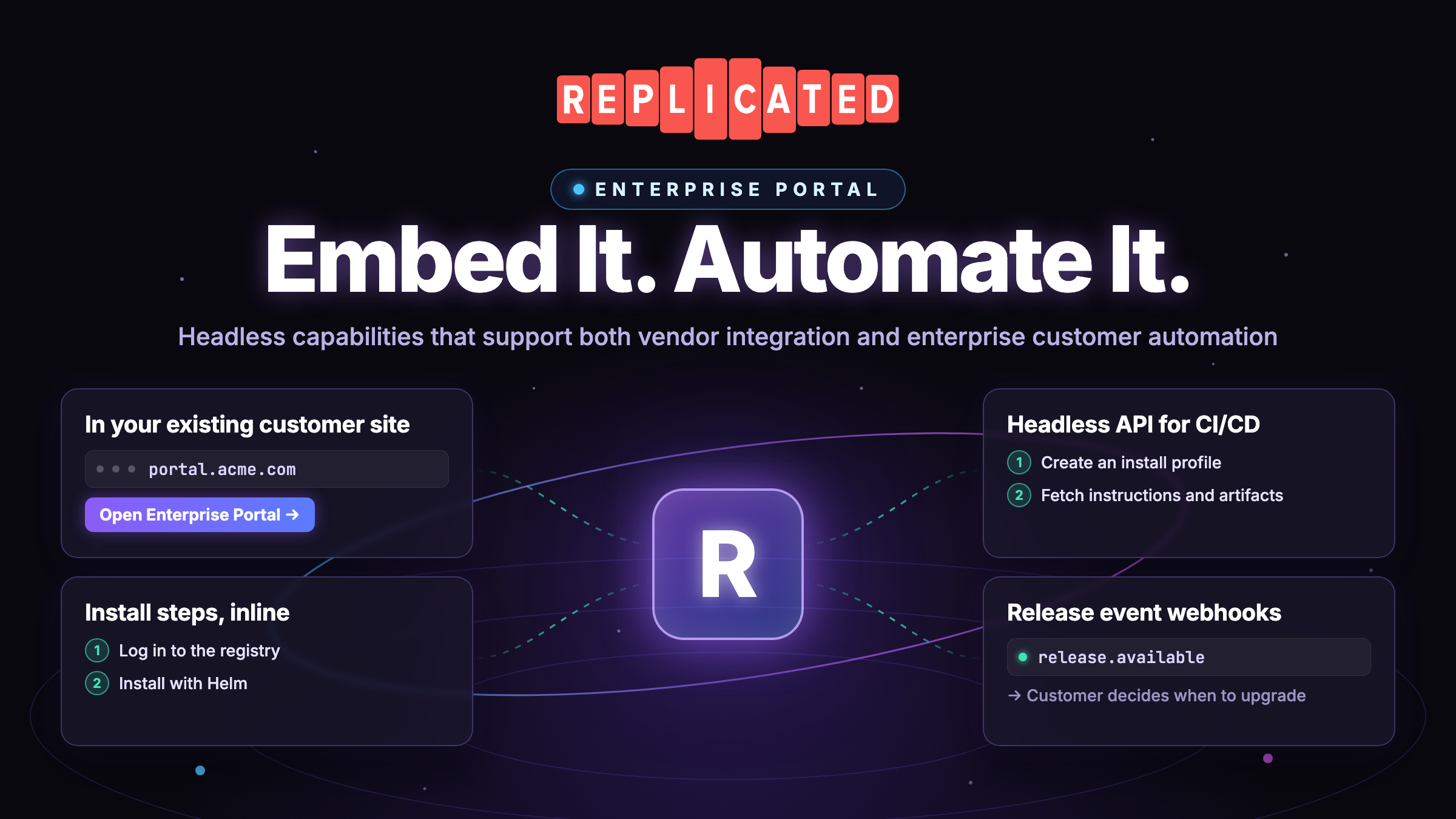
When you sell self-hosted software, the moment a customer first installs it sets the tone for the whole relationship. Too often that moment is a shared PDF, a Slack thread, or a set of instructions that drift out of date. Replicated Enterprise Portal replaces that with one secure place where each customer gets the releases they're licensed to use and the instructions for installing them.
Not every customer wants to work in another portal, though. If your customers already sign in to a support or account portal, you can use the Replicated Vendor API to make that software available there. Your customers can also use the Enterprise Portal Headless API to install and update your application through their own deployment pipelines. They can do this with the new Enterprise Portal as it ships, even if you haven't built a portal integration.
The Enterprise Portal customer-facing headless API is available only in the new Enterprise Portal. It isn't part of the Classic Enterprise Portal or the Download Portal, so customers who still use either one need to move to the new Enterprise Portal before they can automate installs this way.
The new Enterprise Portal is in Beta and close to general availability. It's available to every team today, and we recommend it for new customers and for teams ready to move off the Classic Enterprise Portal or the older Download Portal. For an overview of what's included, see About the Enterprise Portal.
Embed Enterprise Portal in your existing customer portal
How you integrate depends on what customers come to your portal to do. If they manage their subscription there and occasionally need to download or install your software, a direct link to Enterprise Portal may be all they need. When a signed-in customer follows the link, your backend looks up their Replicated customer ID and requests a one-time login URL from the Vendor API. They arrive in their Enterprise Portal with their releases and documentation, without signing in again.
If installation is already part of your onboarding flow, you might want customers to stay on that page. Your backend can create an install profile (called install options in the Vendor API) for the release they selected, specifying the installation method and settings such as whether their environment has internet access. The Vendor API returns instructions tailored to that profile. You can display those steps alongside the rest of your onboarding instructions.
The walkthrough shows what each approach looks like from the same customer dashboard. In both examples, the backend maps the signed-in organization to its Replicated customer record and keeps the Vendor API token on the server. For authentication, endpoints, and request examples, see the Vendor API integration guide.
Enable customers to automate installs and upgrades with the Headless API
A platform team that deploys your application through CI/CD can use the Headless API from a job in its own environment. For a new installation, the job uses a customer service account token to create an install profile, fetch the instructions, and download the artifacts those instructions call for. It keeps the profile ID so it can request updates for the same installation.
For upgrades, customers can check their channel on a schedule or register a webhook in Enterprise Portal to hear when a release becomes available. The walkthrough follows a webhook from release promotion through a Helm upgrade on the customer's cluster.
When you promote a release to the customer's channel with Notify users enabled, Replicated sends a signed release.available event once the release is ready. The customer's listener verifies the signature. Its upgrade job then uses the install profile ID and the release identified in the event to request the right instructions from the Headless API on the customer's portal domain. You can check each customer's webhook status and delivery history from the Vendor Portal.
In the walkthrough, the job checks for required intermediate releases, runs the upgrade with the customer's saved configuration, and verifies the rollout before recording the new version on the install profile. The customer decides when to run that job. A team with a change approval process can queue the release for its next maintenance window.
To give your customers a working example, add <HeadlessWorkflowGuide /> to a page in your Enterprise Portal. It walks them through a first install and subsequent upgrades. You can also include <APIReference /> so they can look up the requests as they build their pipeline. Enable customer automation
Get started
If you're not using the new Enterprise Portal yet, go to Enterprise Portal in the Vendor Portal and select New Portal to set it up. Then give a customer access. You can run it alongside the Classic Enterprise Portal or the Download Portal and move customers over one at a time.
From there, pick the path that fits your customers:
- If they already have an existing customer account portal with you, start with a one-time login link from that portal. It's the smallest change to make, and you can add embedded install instructions later.
- If they run your application through CI/CD, move them to the new Enterprise Portal, add the automation pages to your portal, and turn on Notify users when you promote releases so their webhooks fire.
If you have questions, or would like help moving your customers to the new Enterprise Portal, reach out to your Replicated account team and we'll help you plan the move.